Conversion and UX
Error messages: 5 tips to keep engaged users
Well-designed error messages help people understand a problem, fix it, and continue using an interface.
Let’s be honest: very often, users will not interact with our interfaces the way we planned. 🤦♂️
The truth is that, no matter how hard we try, users will take actions or make “creative” interpretations that lead them to an error message, especially when filling out a form.
And think about it: error messages have an extremely important job. They are the last chance to keep an engaged user (often close to a key conversion) from leaving. They are how we explain what happened and how to solve the problem.
Error messages are often an invisible problem
Most products and websites do not give this subject the attention it deserves. In my experience, this lack of awareness comes from a combination of factors. The main ones are:
The illusion, when an interface is being planned, that users will always understand exactly what to do.
A lack of tracking. It is still rare for UX and Marketing professionals to have easy, ongoing access to error-message reports. They do not even know the problem exists.
No user testing. It is hard to explain how important regular tests with real users are. Watching real use is often enough to notice that errors happen frequently, and that the way they are handled only increases users’ frustration.
So today, let’s give special attention to good practices and techniques that make error messages more effective and help keep an engaged user from becoming a detractor of your brand.
Tip #1: Make the message easy to notice
No matter how great your error message is, if users do not notice it, it is completely useless.
Users tend to focus on the field they just filled in. So the best way to make sure they notice an error message is to display it near the field where the error happened. This also helps them understand the context more quickly.
Here is an example of what NOT to do:
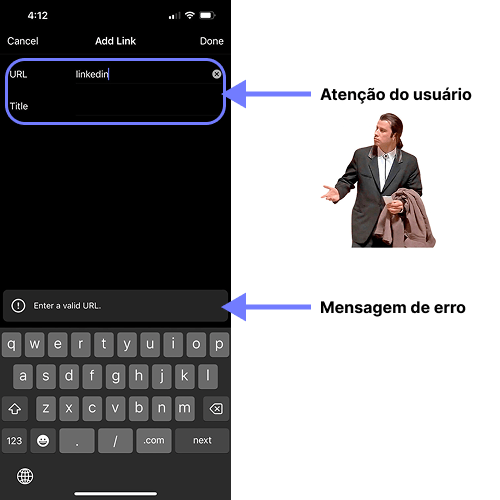
The message is far from the “action” and, on top of that, visually subtle. That is exactly what we do not want for something that must not go unnoticed.
If you want to get a perfect score for message placement, put it above the field where the error occurred (even though most websites put it below), like this:
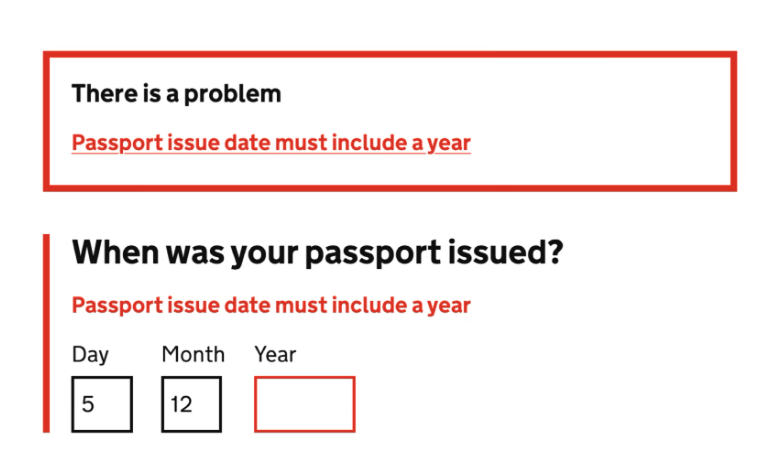
Placing the error above the field helps avoid situations where the message appears in a part of the page the user has not scrolled far enough to see. This is especially common on mobile phones.
Along with placement, consider other ways to make your message visible. These include:
Bright colors with high contrast against the rest of the page. If red meets those requirements in your interface, prefer it because it is the most conventional color for errors. But if red is common in your design, it naturally will not be the best choice for increasing visibility.
Entrance animations for messages. We pay attention to things that move.
Icons, especially ones that people instinctively associate with errors. ⚠️🛑🚨
Tip #2: Show the message at the right time
If your error message appears too early, most of the time it is a false alarm. For example, complaining that a password is too weak just as someone has started typing it:
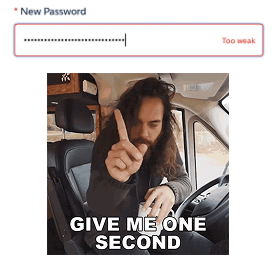
Waiting too long is not ideal either. Imagine filling in a long form and then being hit with several errors at once after pressing submit.
The accumulated frustration in this kind of situation often makes users give up.
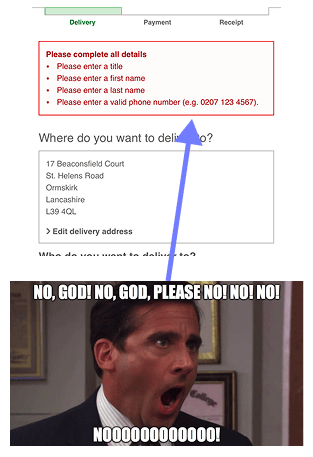
If the messages had appeared individually, immediately after each field was filled in, the frustration would have been spread out and more users would have stayed in the conversion flow.
Think about the ideal moment to show each feedback message to the user.
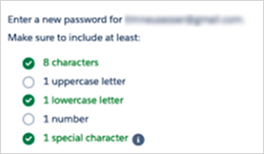
Even when it is not an error, this feedback can help a lot. For example, going back to password creation, a list of password requirements that updates in real time, like the message below, is much more useful than a rushed “weak password” warning.
Tip #3: Actively help users solve their problem
Who has not been frustrated by a message like this?
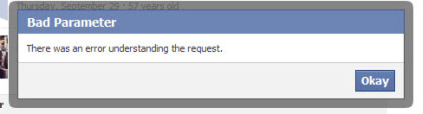
Messages like this are often technical and provide no information about what happened or how to fix it. They are dead ends.
The user has no other option but to give up. And that is how an engaged user becomes a detractor.
When planning error messages, make sure they are easy to understand for users at every level.
Above all, make sure they explain how to fix the error. Here is a good example:

Explaining how to fix a problem, or at least suggesting an action, is essential.
Even if the error is on the server and the user cannot do anything about it, being transparent and telling them to come back later is much better than showing a generic error message.
Tip #4: Avoid negative language
No matter how many good practices from this list you follow, users will never feel great when they see an error message.
Do not make the experience even worse by writing copy with a negative tone, like these examples:
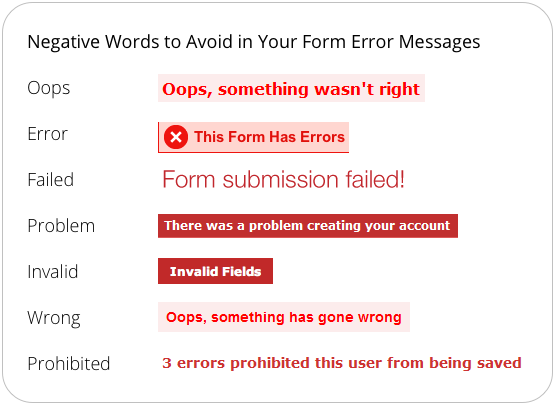
Source: UX Movement
Be constructive and focus on solving the problem. Do not point fingers at users with words like “wrong” or “forbidden.”
Deep down, it is your fault. 🥲 Blaming the user will only increase their frustration and hurt your business.
Tip #5: Prevent errors
As mentioned above, errors are never a wonderful thing.
They are often unavoidable, and we certainly need to be ready to deal with them.
But some errors can be prevented if we anticipate them correctly. Preventing errors is much better for the experience than any highly optimized error message.
Evaluate each field individually, watch session recordings, and run tests with real users. This will reveal errors you can prevent by taking steps such as:
Describe more clearly what is expected in the field, including examples.
Accept only valid characters for the field. For example, ZIP-code fields should not accept letters.
On mobile phones, show the right keyboard for each field. For example, email fields can use a keyboard with the relevant characters.
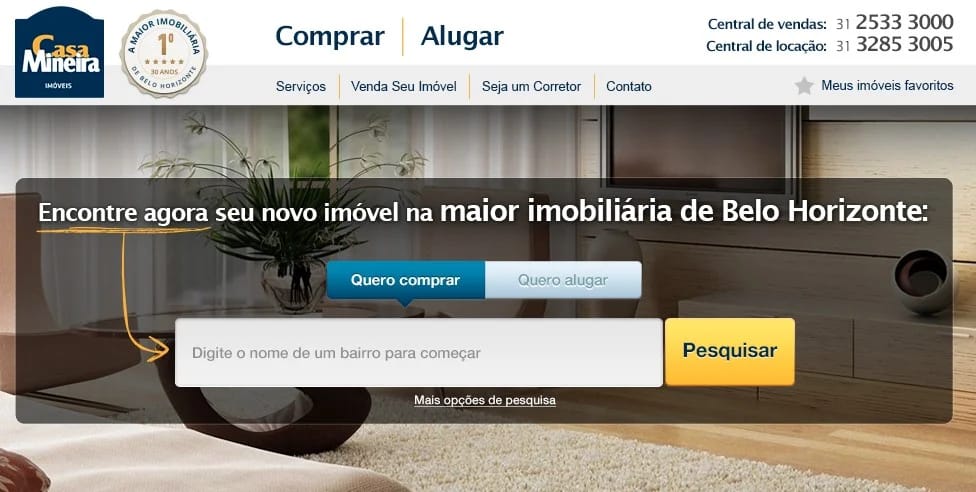
Where it makes sense, replace open text fields with selection boxes. Quite a few years ago (👴), I worked with the real estate company Casa Mineira (later acquired by QuintoAndar) and ran a test that replaced the website’s search box with two selection boxes:
This was the original version:
And this is how it looked:

This change led 57.25% more people to continue to the search results page.
You can read the details about why I made this change in this case study. In short, several user errors were prevented by having people choose from fixed options instead of typing freely. But be careful: I do not recommend replacing search boxes with selection boxes in every situation. Every case is different.
Bonus tip: Measure everything
As I mentioned, user errors are often invisible because the people responsible for interfaces do not have access to data and reports about error messages.
Do not let that be your case. As we have seen, error messages are more decisive to the success of digital interfaces than they may appear.
Make sure your Analytics solution receives events related to error-message displays.
If you use GA4, this is a useful tutorial. Or you could choose a dedicated form-tracking solution such as Zuko Analytics.
Whatever you choose, the important thing is that you and your team can see what is happening with your forms and error messages, so you can understand how to improve them.